Reelium Live For Twitch · Pro & Power
When chat reacts,
your clipper gets
the alert.
Keep your attention on the stream.
Reelium watches your Twitch chat for reactions and sends a Discord alert to the people catching your clips. The moment is saved for review when your VOD is ready.
Connect Twitch with chat access, bind Discord, then enable Live.
# example-clip-alerts
A reaction worth checking
Your clipper gets the signal during the stream. The mark saves a place to return to once the VOD is analysed.
You review the moment and choose the cut before exporting or publishing.
Get ready for
your next stream.
One setup. A Discord channel your clipper already checks.
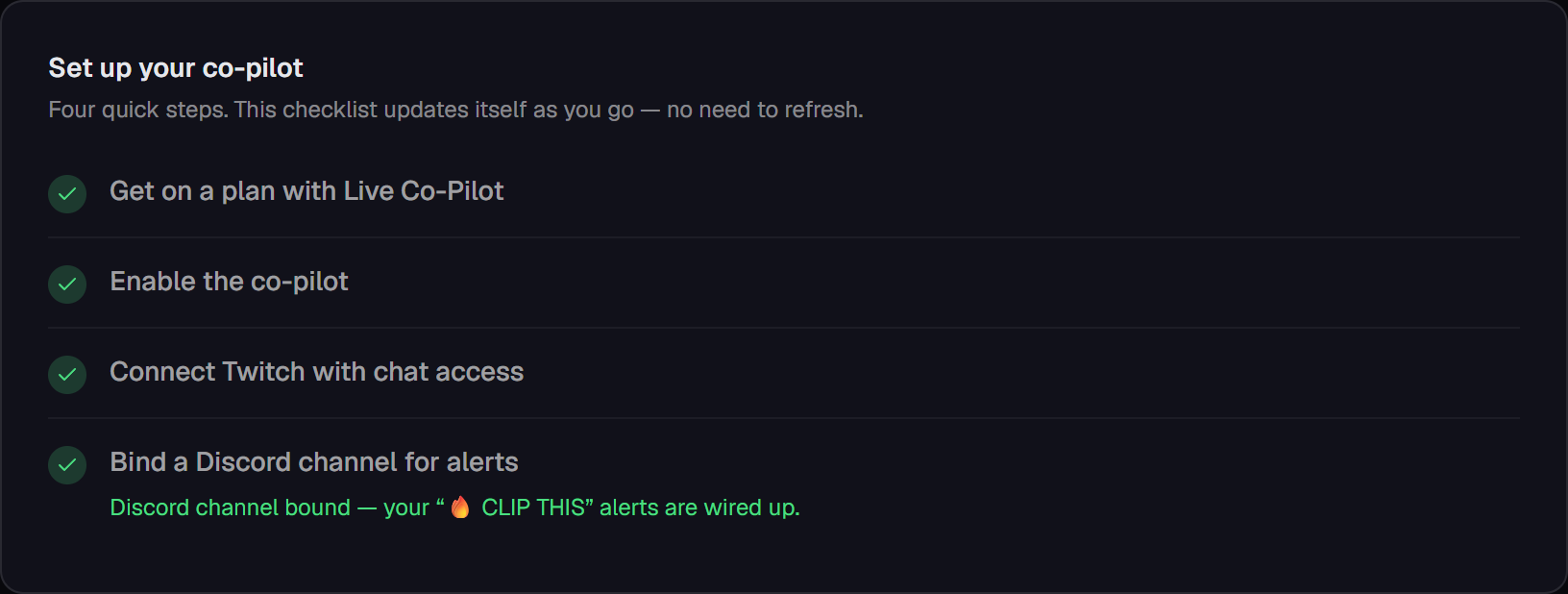
Your dashboard shows when each connection is ready.
- 1
Choose a plan with Live.
Included on Pro and Power. Compare plans.
- 2
Enable your co-pilot.
Turn Live on in your dashboard.
- 3
Connect Twitch chat.
Grant chat access. If Twitch is already connected, you may need to reconnect.
- 4
Choose your Discord channel.
Install the bot and bind the channel where your clipper should receive alerts.
A signal to act on.
The final call is yours.
A reaction is a reason to look. Your clipper knows the context; you decide which moments deserve a finished clip.
- During the streamChat detection, Discord alerts and saved marks.
- After VOD analysisSelected marks join your draft picks for review and editing.
- Before anything goes outYou choose the cut and the export or publishing action.
Before you go live.
What do I need to get started?
A Pro or Power plan, your Twitch account connected with chat access, and a Discord server where you can install the Reelium bot and bind a channel. Enable Live in your dashboard once those connections are ready.
Does this work with Kick?
Live Co-Pilot currently supports Twitch. You can still use Reelium’s post-stream workflow for supported Twitch and Kick broadcasts.
What if my chat is quiet?
An alert needs enough chat activity to identify a reaction. A quiet stream may produce no alerts. You can still analyse the finished VOD, where the transcript helps Reelium find candidate moments.
Who receives the alert?
The alert is sent to the Discord channel you bind during setup. Choose a channel your clipper or moderators already use.
Will it make and publish clips while I am live?
Live sends alerts and records moments. When the VOD is available and analysed, selected live marks can become draft picks. You review the cut, finish the clip and choose whether to export or publish it.
How quickly will alerts arrive?
Alerts are sent after the chat detector identifies a reaction. Delivery depends on chat activity and the Twitch and Discord connections; there is no fixed sub-second delivery promise.
Be ready when
the room reacts.
Live alerts for your next Twitch stream.
Included on Pro & Power.